This is an old revision of the document!
Launch an Interactive Desktop on the GPU Node
Open OnDemand is a web-based interface that provides access to HPC cluster resources through a browser. It allows you to launch interactive desktop sessions, run applications, manage files, and submit jobs without using the command line. Through Open OnDemand users can run an interactive desktop session on the GPU node of HPC2.
Access the pre-configured session
External Link
- Log in at https://hpc2.grinnell.edu using your Grinnell college credentials.
- Click the GPU Desktop tile under the *Interactive Apps* heading.
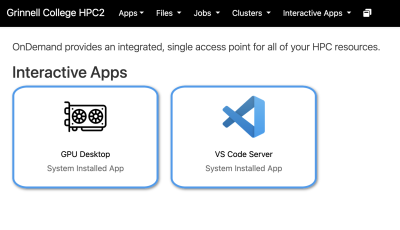
(The exact names vary by cluster.)
3. Configure the Job
You will be presented with a job submission form.
Typical options include:
| Setting | Description | |
|---|---|---|
| Account / Project | Billing or allocation account | |
| Partition / Queue | Cluster queue to run on | |
| Number of Cores | CPU cores requested | |
| Memory | RAM allocation | |
| Wall Time | Maximum session duration | |
| GPU Options | Optional GPU resources | |
| Desktop Environment | XFCE, GNOME, etc. | |
Choose resources appropriate for your workload.
Example: * 4 CPU cores * 8 GB RAM * 2-hour wall time
4. Launch the Session
Click:
* *Launch* * *Submit* * or *Start*
depending on your site configuration.
The job will enter the scheduler queue.
5. Wait for the Job to Start
Your session status will typically show: * Queued * Starting * Running
Once the job starts, a button such as *Launch Desktop or Connect to Desktop* will appear.
Click it to open the remote desktop in your browser.
6. Use the Desktop Environment
Inside the desktop session, you can: * Open terminals * Run GUI applications * Use IDEs * Visualize data * Launch MATLAB, RStudio, ParaView, etc.
The session behaves similarly to a Linux desktop computer running on the cluster.
File Access
You can transfer and manage files using: * The *Files* menu in Open OnDemand * SCP/SFTP * Shared storage mounted on the cluster
Your home directory and project storage are typically available automatically.
Ending the Session
When finished:
- Save your work. - Close applications. - Return to the Open OnDemand dashboard. - Select *My Interactive Sessions*. - Click *Delete or Terminate* to end the job.
Closing the browser tab alone may not stop the job.
Troubleshooting
Job Stays Queued
Possible causes: * Cluster is busy * Requested resources are too large * Incorrect account or partition
Try reducing: * CPU count * Memory * Wall time
Desktop Will Not Open
Possible causes: * Browser popup blocker * Expired session * VNC/websocket startup failure
Try: * Refreshing the page * Relaunching the job * Using a different browser
Session Disconnects
Interactive jobs automatically terminate when: * Wall time expires * The job is canceled * Cluster maintenance occurs
Save work frequently.
Best Practices
* Request only the resources you need. * Use shorter wall times when possible. * Terminate unused sessions promptly. * Use interactive desktops for visualization and development, not large batch production runs.